Pandas 히스토그램에서 x축 범위를 변경하는 방법
range 인수를 사용하여 팬더 히스토그램의 x축 범위를 변경할 수 있습니다.
plt. hist (df[' var1 '], range=[ 10 , 30 ])
이 특정 예에서는 x축을 10에서 30 사이로 설정했습니다.
다음 예에서는 실제로 범위 인수를 사용하는 방법을 보여줍니다.
예: Pandas 히스토그램에서 X축 범위 변경
다음과 같은 팬더 DataFrame이 있다고 가정합니다.
 import pandas as pd
import numpy as np

#make this example reproducible
n.p. random . seeds (1)

#createDataFrame
df = pd. DataFrame ({' team ': np.repeat ([' A ',' B ',' C '], 100 ),
                   ' points ': np. random . normal (loc= 20 , scale= 2 , size= 300 )})

#view head of DataFrame
print ( df.head ())

  team points
0 A 23.248691
1 A 18.776487
2 A 18.943656
3 A 17.854063
4 A 21.730815
포인트 변수에 대한 히스토그램을 생성하면 pandas는 포인트 변수의 최소값과 최대값을 기준으로 x축 범위를 자동으로 선택합니다.
 import matplotlib.pyplot as plt

#create histogram for variable points
plt. hist (df[' points '], edgecolor=' black ')
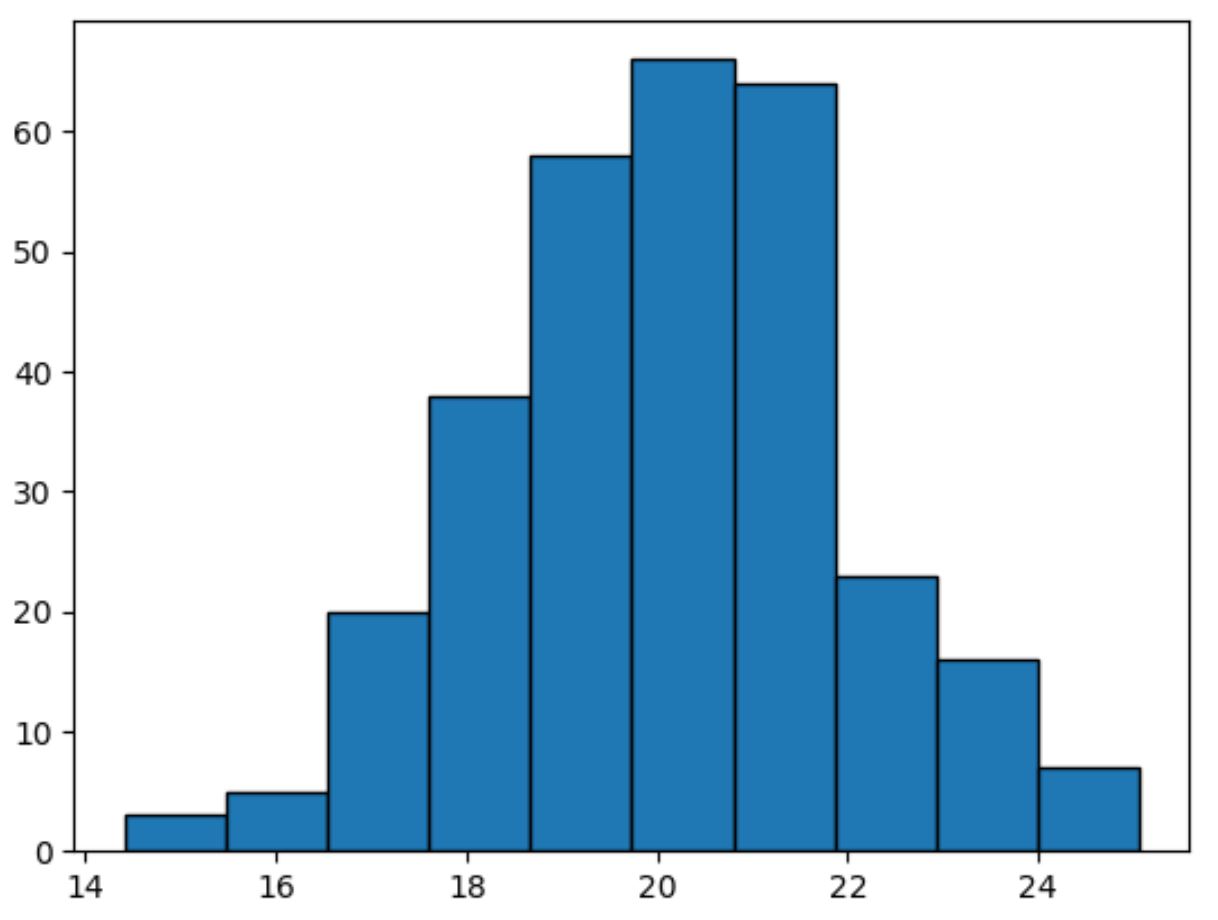
x축은 14에서 25까지입니다.
explain() 함수를 사용하여 points 변수의 최소값과 최대값을 표시할 수 있습니다.
 #summarize distribution of points variable
df[' points ']. describe ()

count 300.000000
mean 20.148800
std 1.890841
min 14.413830
25% 18.818254
50% 20.176352
75% 21.372843
max 25.056651
Name: points, dtype: float64
최소값은 14.41이고 최대값은 25.06임을 알 수 있습니다. 이는 현재 차트의 x축 범위가 14~25인 이유를 설명합니다.
그러나 range 인수를 사용하여 x축을 10에서 30으로 강제 설정할 수 있습니다.
 import matplotlib.pyplot as plt

#create histogram for points variable with custom x-axis range
plt. hist (df[' points '], edgecolor=' black ', range=[ 10 , 30 ])
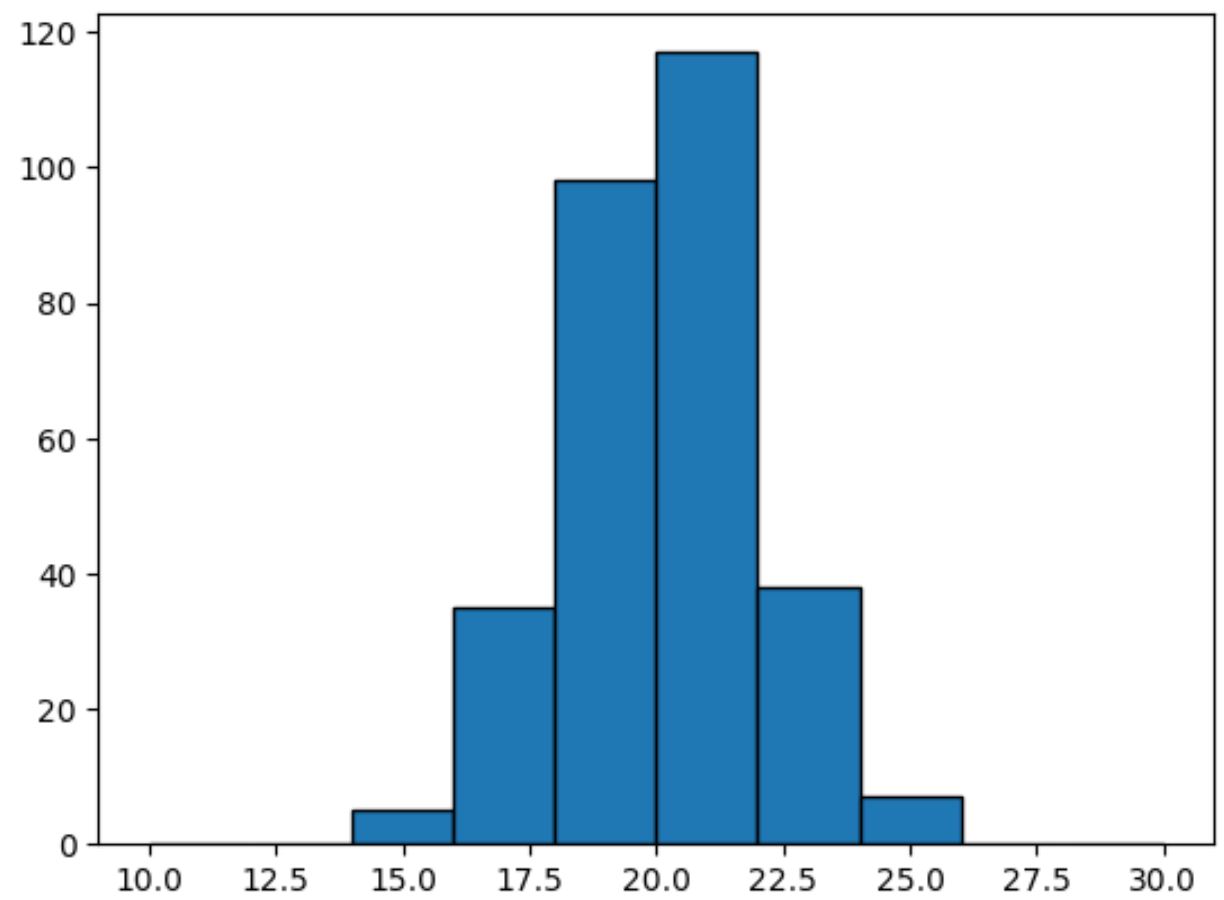
이제 X축의 범위는 10~30입니다.
추가 리소스
다음 튜토리얼에서는 다른 일반적인 Panda 작업을 수행하는 방법을 설명합니다.
Pandas DataFrame에서 히스토그램을 만드는 방법
Pandas 시리즈에서 히스토그램을 만드는 방법
Pandas에서 그룹별로 히스토그램을 그리는 방법
저자 소개

벤자민 앤더슨
안녕하세요. 저는 통계학 교수를 퇴직하고 전임 통계 교사로 변신한 벤자민입니다. 통계 분야의 광범위한 경험과 전문 지식을 바탕으로 Statorials를 통해 학생들에게 힘을 실어주기 위해 지식을 공유하고 싶습니다. 더 알아보기