Vba- အခြေအနေအရ ဖော်မတ်ချခြင်းကို ဆဲလ်များတွင် မည်သို့အသုံးပြုရမည်နည်း။
ဆဲလ်များသို့ အခြေအနေအလိုက် ဖော်မတ်ချခြင်းကို အသုံးပြုရန် VBA တွင် အောက်ပါနည်းလမ်းများကို သင်အသုံးပြုနိုင်သည်-
နည်းလမ်း 1- အခြေအနေတစ်ခုအပေါ် အခြေခံ၍ သတ်မှတ်ပုံစံချခြင်းကို အသုံးပြုပါ။
 Sub ConditionalFormatOne()
Dim rg As Range
Dim cond As FormatCondition

'specify range to apply conditional formatting
Set rg = Range(" B2:B11 ")

'clear any existing conditional formatting
rg.FormatConditions.Delete

'apply conditional formatting to any cell in range B2:B11 with value greater than 30
Set cond = rg.FormatConditions.Add(xlCellValue, xlGreater, " =30 ")

'define conditional formatting to use
With cond
.Interior.Color = vbGreen
.Font.Color = vbBlack
.Font.Bold = True
End With

End Sub
နည်းလမ်း 2- အခြေအနေများစွာကို အခြေခံ၍ သတ်မှတ်ပုံစံချခြင်းကို အသုံးပြုပါ။
 Sub ConditionalFormatMultiple()
Dim rg As Range
Dim cond1 As FormatCondition, cond2 As FormatCondition, cond3 As FormatCondition

'specify range to apply conditional formatting
Set rg = Range(" A2:A11 ")

'clear any existing conditional formatting
rg.FormatConditions.Delete

'specify rules for conditional formatting
Set cond1 = rg.FormatConditions.Add(xlCellValue, xlEqual, “ Mavericks ”)
Set cond2 = rg.FormatConditions.Add(xlCellValue, xlEqual, “ Blazers ”)
Set cond3 = rg.FormatConditions.Add(xlCellValue, xlEqual, “ Celtics ”)

'define conditional formatting to use
With cond1
.Interior.Color = vbBlue
.Font.Color = vbWhite
.Font.Italic = True
End With

With cond2
.Interior.Color = vbRed
.Font.Color = vbWhite
.Font.Bold = True
End With

With cond3
.Interior.Color = vbGreen
.Font.Color = vbBlack
End With

End Sub
နည်းလမ်း 3- အခြေအနေအလိုက် ဖော်မတ်ချခြင်းစည်းမျဉ်းအားလုံးကို ဆဲလ်များမှ ဖယ်ရှားပါ။
 Sub RemoveConditionalFormatting()
ActiveSheet.Cells.FormatConditions.Delete
End Sub
အောက်ဖော်ပြပါ ဥပမာများသည် Excel တွင် အောက်ပါဒေတာအစုံဖြင့် နည်းလမ်းတစ်ခုစီကို လက်တွေ့အသုံးပြုနည်းကို ပြသသည်-
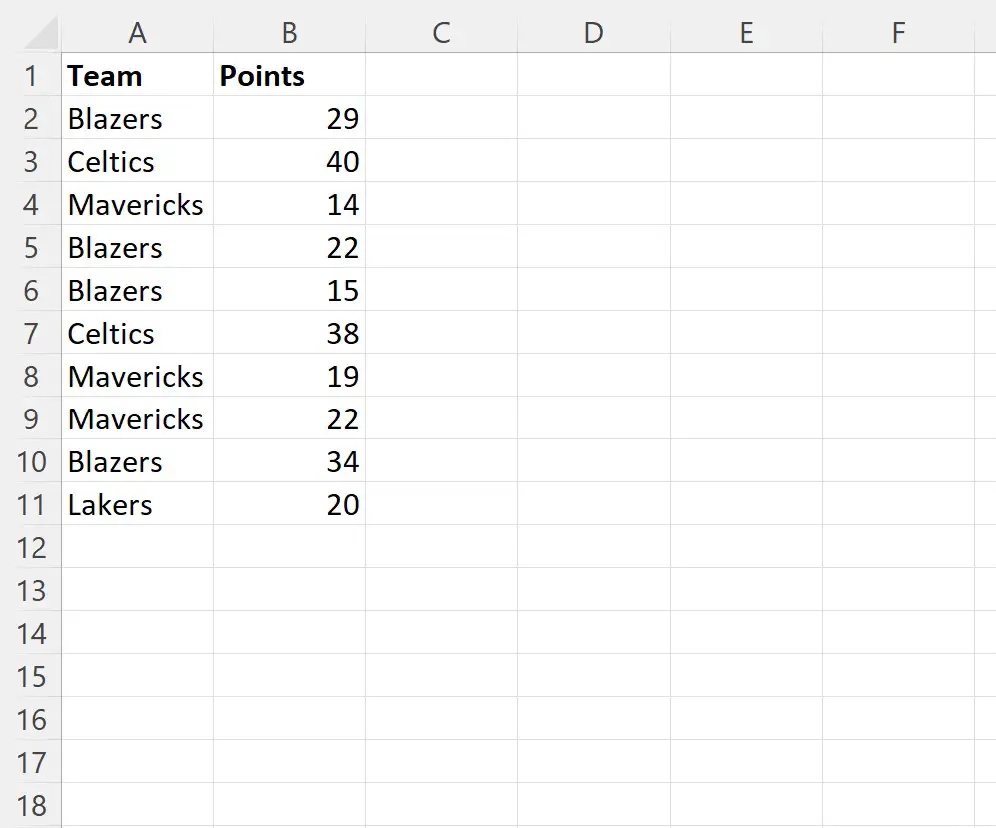
ဥပမာ 1- အခြေအနေတစ်ခုအပေါ် အခြေခံ၍ သတ်မှတ်ပုံစံဖြင့် ဖော်မတ်ကို အသုံးပြုပါ။
အစိမ်းရောင်နောက်ခံ၊ အနက်ရောင်ဖောင့်နှင့် ရဲရင့်သောစာသားစတိုင်ဖြင့် 30 ထက်ကြီးသော တန်ဖိုးရှိသော B2:B11 အတွင်းရှိ ဆဲလ်များကို ဖြည့်ရန် အောက်ပါ macro ကို အသုံးပြုနိုင်ပါသည်။
 Sub ConditionalFormatOne()
Dim rg As Range
Dim cond As FormatCondition

'specify range to apply conditional formatting
Set rg = Range(" B2:B11 ")

'clear any existing conditional formatting
rg.FormatConditions.Delete

'apply conditional formatting to any cell in range B2:B11 with value greater than 30
Set cond = rg.FormatConditions.Add(xlCellValue, xlGreater, " =30 ")

'define conditional formatting to use
With cond
.Interior.Color = vbGreen
.Font.Color = vbBlack
.Font.Bold = True
End With

End Sub
ကျွန်ုပ်တို့ ဤ macro ကို run သောအခါတွင်၊ ကျွန်ုပ်တို့သည် အောက်ပါ output ကို ရရှိသည် ။
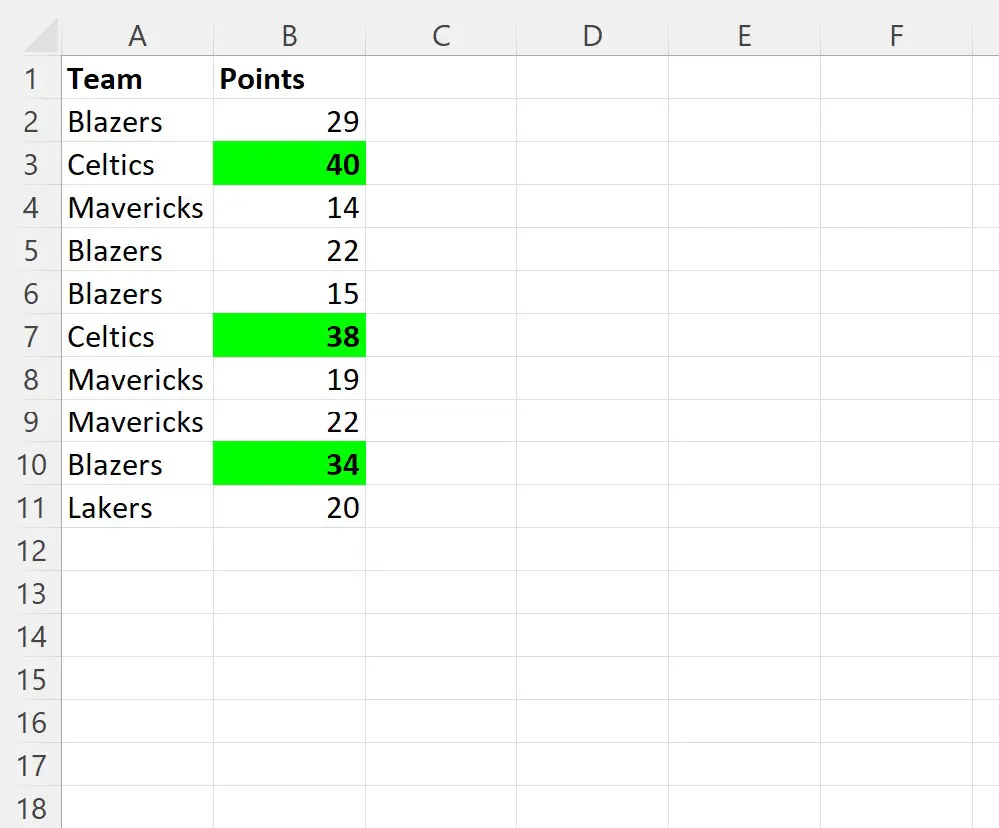
30 ထက်ကြီးသောတန်ဖိုးရှိသော အပိုင်းအခြား B2:B11 ရှိ ဆဲလ်တစ်ခုစီသည် အခြေအနေအရ ဖော်မတ်ပြုလုပ်ခြင်းအပေါ် မူတည်ကြောင်း သတိပြုပါ။
30 နှင့် ညီမျှသော သို့မဟုတ် ထက်နည်းသော တန်ဖိုးရှိသော မည်သည့်ဆဲလ်ကိုမဆို ရိုးရိုးရှင်းရှင်းထားလိုက်ပါ။
ဥပမာ 2- အခြေအနေများစွာကို အခြေခံ၍ သတ်မှတ်ပုံစံချခြင်းကို အသုံးပြုပါ။
၎င်းတို့၏အဖွဲ့အမည်ကိုအခြေခံ၍ အပိုင်းအခြား A2:A11 ရှိဆဲလ်များတွင် အခြေအနေအလိုက်ဖော်မတ်ချခြင်းကို အသုံးပြုရန် အောက်ပါ macro ကို အသုံးပြုနိုင်သည်။
 Sub ConditionalFormatMultiple()
Dim rg As Range
Dim cond1 As FormatCondition, cond2 As FormatCondition, cond3 As FormatCondition

'specify range to apply conditional formatting
Set rg = Range(" A2:A11 ")

'clear any existing conditional formatting
rg.FormatConditions.Delete

'specify rules for conditional formatting
Set cond1 = rg.FormatConditions.Add(xlCellValue, xlEqual, “ Mavericks ”)
Set cond2 = rg.FormatConditions.Add(xlCellValue, xlEqual, “ Blazers ”)
Set cond3 = rg.FormatConditions.Add(xlCellValue, xlEqual, “ Celtics ”)

'define conditional formatting to use
With cond1
.Interior.Color = vbBlue
.Font.Color = vbWhite
.Font.Italic = True
End With

With cond2
.Interior.Color = vbRed
.Font.Color = vbWhite
.Font.Bold = True
End With

With cond3
.Interior.Color = vbGreen
.Font.Color = vbBlack
End With

End Sub
ကျွန်ုပ်တို့ ဤ macro ကို run သောအခါတွင်၊ ကျွန်ုပ်တို့သည် အောက်ပါ output ကို ရရှိသည် ။
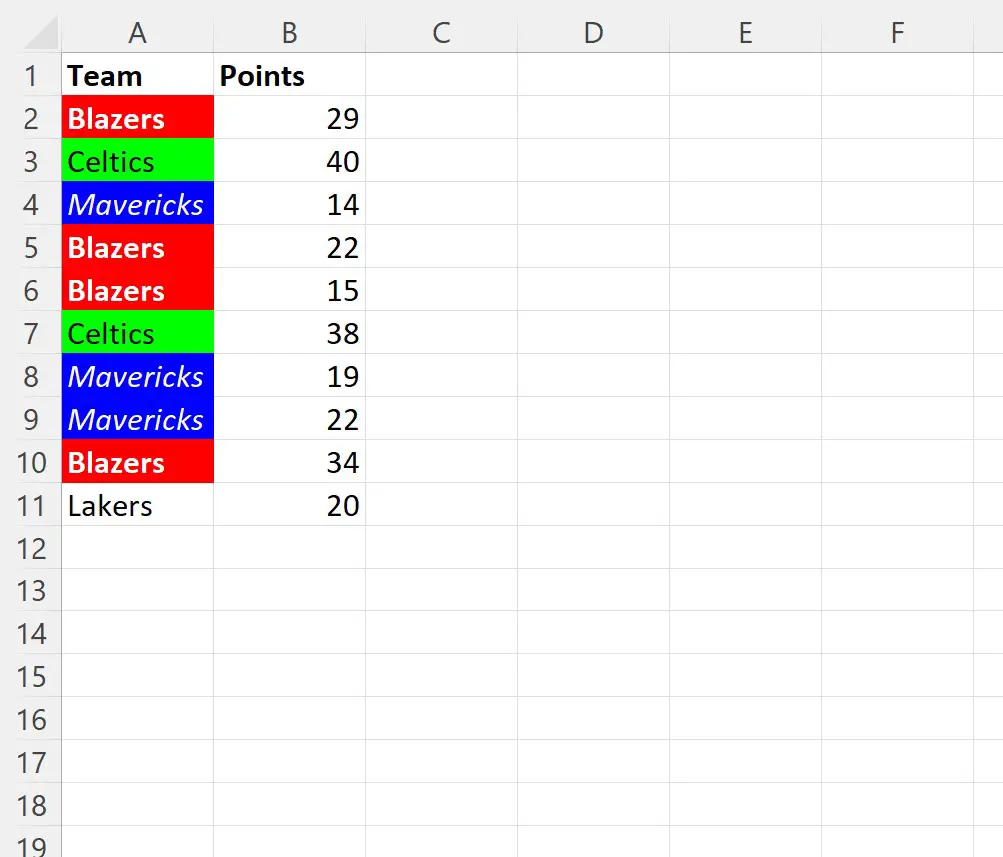
“ Mavericks” ၊ “ Blazers” နှင့် “ Celtics” ဟူသော အဖွဲ့အမည်များဖြင့် ဆဲလ်များအားလုံးသည် သီးခြားအခြေအနေအလိုက် ဖော်မတ်ချထားခြင်းအပေါ် မူတည်ကြောင်း သတိပြုပါ။
“ Lakers” အမည်ရှိသော တစ်ခုတည်းသောအဖွဲ့သည် ထိုအဖွဲ့အမည်ဖြင့် ဆဲလ်များအတွက် အခြေအနေအလိုက်ဖော်မတ်သတ်မှတ်ခြင်းဆိုင်ရာ စည်းမျဉ်းများကို မဖော်ပြထားသောကြောင့် တစ်ယောက်တည်းကျန်ခဲ့သည်။
ဥပမာ 3- အခြေအနေအလိုက် ဖော်မတ်ချခြင်းစည်းမျဉ်းအားလုံးကို ဆဲလ်များမှ ဖယ်ရှားပါ။
နောက်ဆုံးတွင်၊ လက်ရှိစာရွက်ရှိ ဆဲလ်များမှ အခြေအနေအလိုက် ဖော်မတ်ချခြင်းစည်းမျဉ်းအားလုံးကို ဖယ်ရှားရန် အောက်ပါ macro ကို အသုံးပြုနိုင်ပါသည်။
 Sub RemoveConditionalFormatting()
ActiveSheet.Cells.FormatConditions.Delete
End Sub
ကျွန်ုပ်တို့ ဤ macro ကို run သောအခါတွင်၊ ကျွန်ုပ်တို့သည် အောက်ပါ output ကို ရရှိသည် ။
အခြေအနေအလိုက် ဖော်မတ်ချခြင်းအားလုံးကို ဆဲလ်တစ်ခုစီမှ ဖယ်ရှားလိုက်ကြောင်း သတိပြုပါ။
ထပ်လောင်းအရင်းအမြစ်များ
အောက်ဖော်ပြပါ သင်ခန်းစာများသည် VBA တွင် အခြားဘုံအလုပ်များကို မည်သို့လုပ်ဆောင်ရမည်ကို ရှင်းပြသည်-
VBA- စာကြောင်းတစ်ခုရှိ ဇာတ်ကောင်များ၏ ဖြစ်ပေါ်မှုကို ရေတွက်နည်း
VBA- စာကြောင်းတစ်ကြောင်းတွင် အခြားစာကြောင်းပါရှိမရှိ စစ်ဆေးနည်း
VBA- ဆဲလ်တွင် “ အကယ်၍” အတွက် ဖော်မြူလာတစ်ခု
စာရေးသူအကြောင်း

Benjamin Anderson
မင်္ဂလာပါ၊ ကျွန်ုပ်သည် အငြိမ်းစား စာရင်းအင်း ပါမောက္ခ ဘင်ဂျမင်ဖြစ်ပြီး သီးသန့် Statorials ဆရာအဖြစ် လှည့်ပတ်ပါသည်။ စာရင်းဇယားနယ်ပယ်တွင် ကျယ်ပြန့်သောအတွေ့အကြုံနှင့် ကျွမ်းကျင်မှုနှင့်အတူ၊ Statorials မှတစ်ဆင့် ကျောင်းသားများကို ခွန်အားဖြစ်စေရန်အတွက် ကျွန်ုပ်၏အသိပညာကို မျှဝေလိုပါသည်။ ပိုသိတယ်။